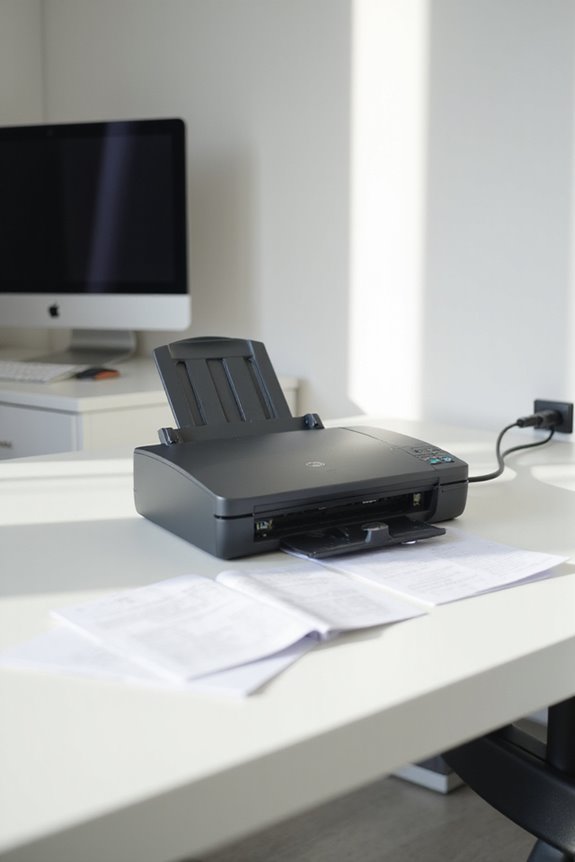
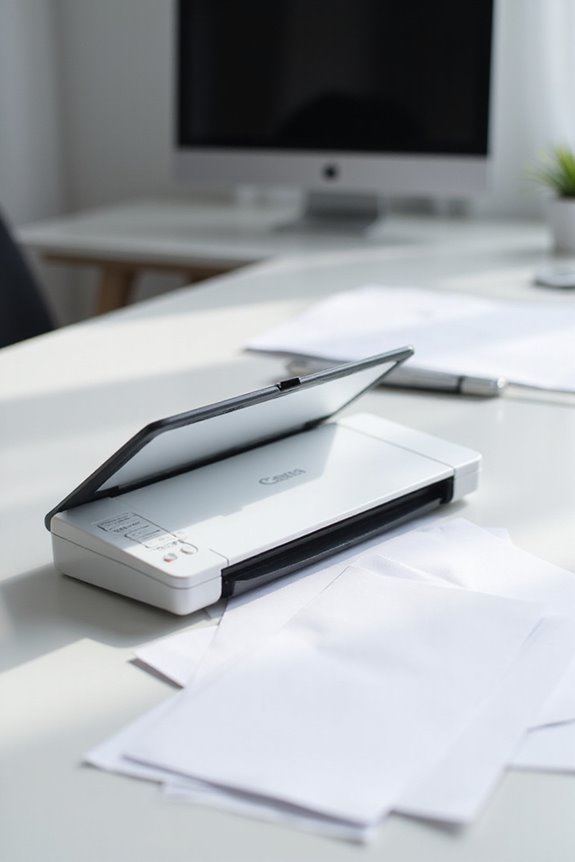
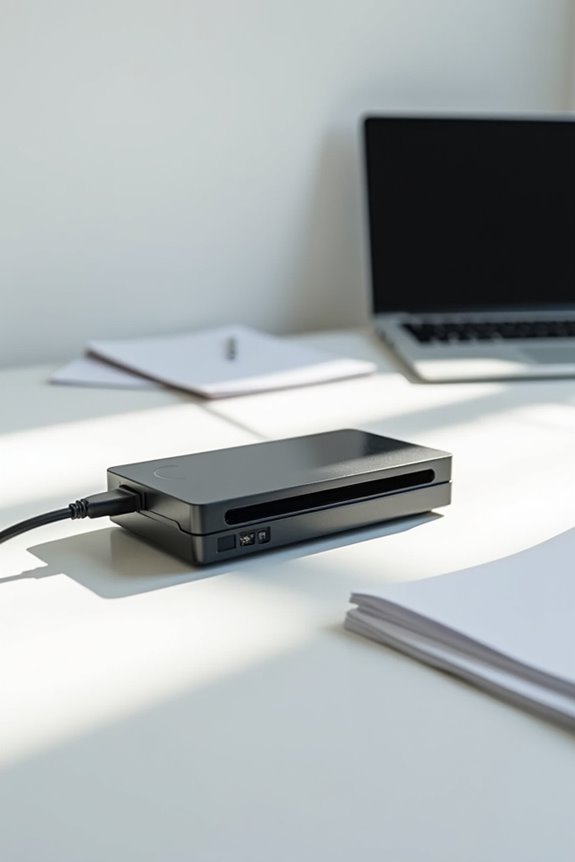
To use third-party scanner software effectively, we need to guarantee compatibility with our scanner by selecting the right drivers, like TWAIN. First, we’ll check for the latest drivers and install them, confirming our operating system supports them. Next, we’ll configure the scanner settings for peak resolution and use. Adjusting these settings boosts our scanning performance. With updates, we must maintain compatibility. Stay tuned, and we’ll explore more tips for enhancing our scanner experience.
Key Takeaways
- Ensure the scanner supports TWAIN drivers for compatibility with third-party software applications.
- Verify installation prerequisites and download necessary drivers compatible with your operating system.
- Select the appropriate scanner device within the software settings to establish communication.
- Update scanner drivers regularly to maintain compatibility with software updates.
- Save configuration profiles for different tasks to streamline future scanning processes.
Understanding Scanner Compatibility
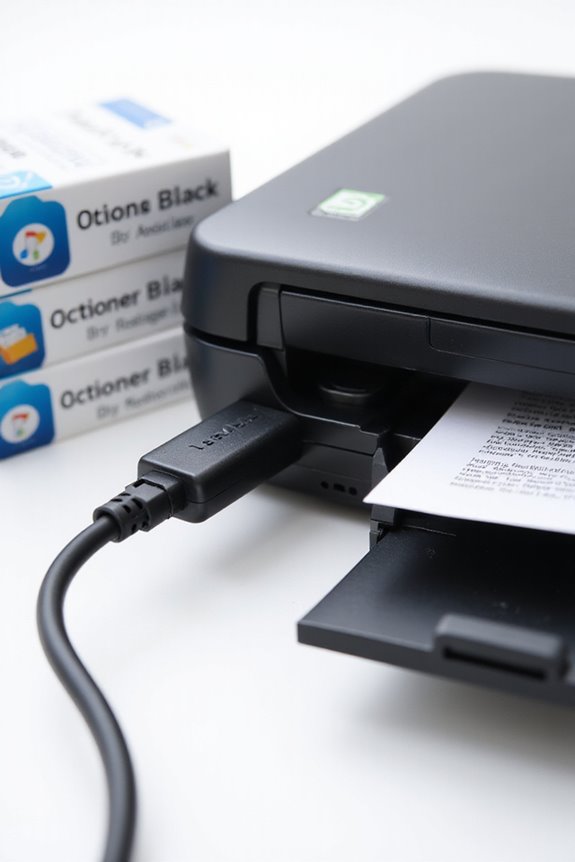
When we think about scanner compatibility, it’s crucial to reflect on how different software options connect with various scanner models. Both ExactScan and VueScan showcase impressive scanner features. ExactScan, for instance, integrates drivers directly, so we don’t need additional installations. It supports numerous brands like Canon and Fujitsu, making it versatile. Meanwhile, VueScan is compatible with over 42 manufacturers, across Windows, macOS, and even Linux. This flexibility helps maintain scanner usability, especially for older models, making software updates essential for performance. Users can try trial versions of both to verify compatibility with their specific hardware. Ultimately, understanding these features lets us optimize our scanning experience while enhancing productivity through software that recognizes and utilizes our scanners effectively. Additionally, considering OCR technology can significantly improve document searchability and management within your workflow.
Selecting the Right Scanner for Your Software

Selecting the right scanner for our software is vital, especially as we navigate diverse options that best suit our needs. We need to focus on scanner features that align with the software requirements. For instance, a scanner with a TWAIN driver guarantees compatibility with programs like Kurzweil 3000. Higher resolution scanners provide better image quality, essential for precise text recognition. Additionally, scanning speed impacts our workflow efficiency, especially in busy environments. We should consider connectivity options like USB and Wi-Fi for versatile usage. Finally, compact scanners are ideal for mobile use or small spaces. By aligning these factors with our software needs, we can optimize our scanning experience and productivity effectively. Furthermore, selecting a scanner that offers duplex scanning capabilities can significantly enhance our efficiency when handling double-sided documents.
Installation and Setup of Scanning Software
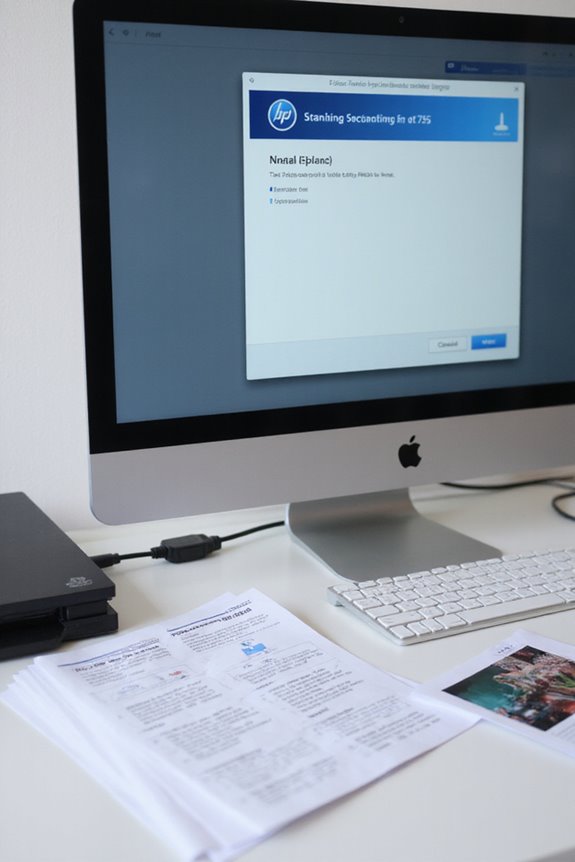
Installing and setting up scanning software involves several essential steps to guarantee a smooth experience. First, we need to check the installation prerequisites, like confirming that the software is compatible with our operating system. Next, we’ll download the necessary drivers specific to our scanner model. Remember, admin privileges are usually required for a successful software installation.
We should also verify there’s enough storage space on our device, and it’s ideal to have a stable network connection for any online updates. Selecting a reliable source for downloading the software is vital, as is specifying the right folder for the installation. Additionally, ensuring that the drivers match the operating system version can prevent functionality issues. By following these steps, we can get our scanning software ready for use efficiently.
Configuring Third-Party Scanners
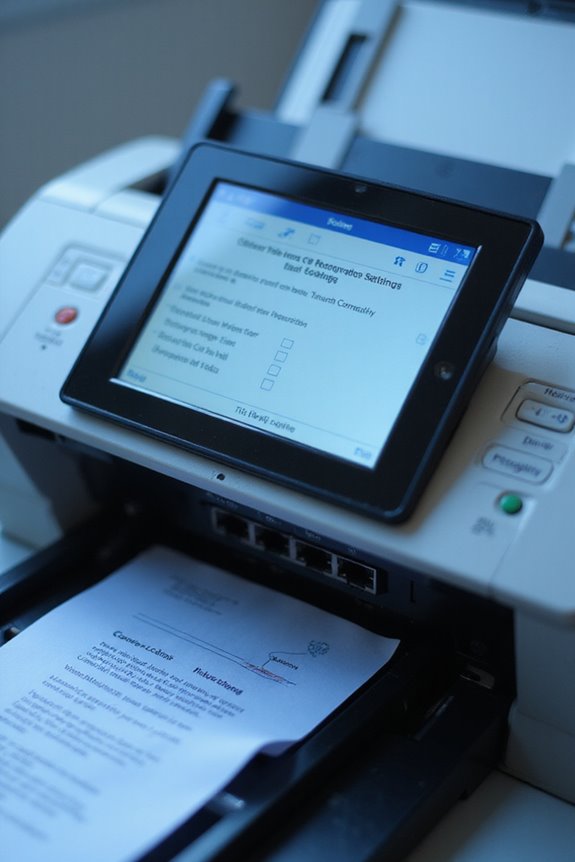
After successfully installing and setting up our scanning software, it’s time to configure third-party scanners for peak performance. First, let’s verify the scanner drivers are updated to guarantee compatibility. Within the software, we should select our scanner device in the settings menu. Choosing the right communication protocol, like TWAIN, is essential for seamless interaction.
Next, we can adjust scanner settings for resolution, color depth, and scan area according to our needs. If our scanner supports special features, like image mirroring or auto-cropping, let’s enable those, too. Remember, saving configuration profiles for different tasks can simplify future scans. Ultimately, these adjustments will enhance image quality, making our scanning tasks more efficient and effective. Additionally, ensuring that the scanner has a daily scan capacity of up to 4,000 scans can significantly improve productivity during high-volume tasks.
Testing and Troubleshooting Connection Issues
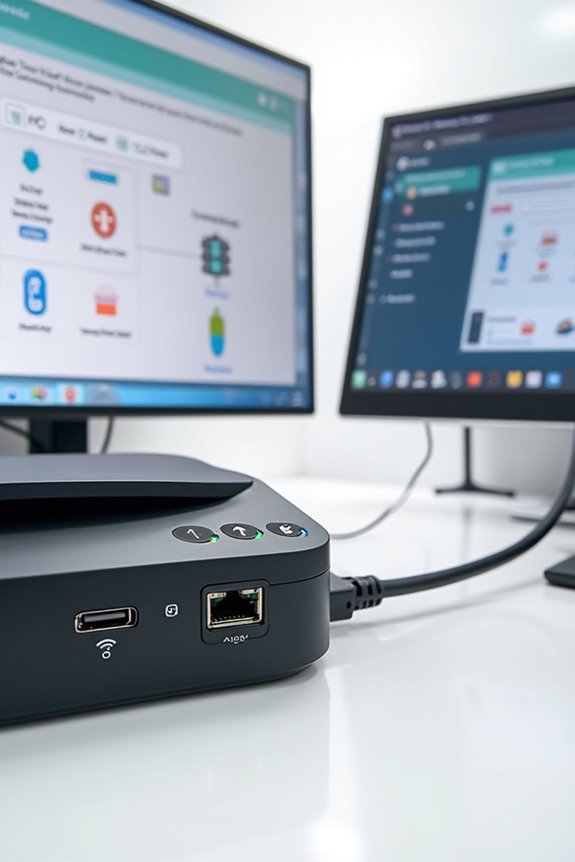
To guarantee our scanner is functioning properly, it’s essential to test and troubleshoot any connection issues we may encounter. First, we should identify our scanner model and check the power supply; ensuring it’s plugged directly into the computer’s USB port avoids potential software conflicts caused by USB hubs. If connection diagnostics fail, we can utilize Device Manager to check for driver updates. Restarting our computer post-update helps optimize performance. Additionally, we must review the manufacturer’s documentation for troubleshooting specific errors. Performing a scan functionality test allows us to verify proper output. By following these steps, we can effectively tackle any connection issues, ensuring our scanner operates seamlessly and efficiently for all our scanning needs. Moreover, ensuring that the scanner is HIPAA-compliant is crucial to protect electronic protected health information during the scanning process.
Maintaining Compatibility With Updates
As we navigate the world of scanner software, it’s vital to maintain compatibility with regular updates. To prevent scanning disruptions, we should enable update notifications for our third-party software. Developers frequently release driver patches to fix bugs and enhance compatibility with new operating systems. This is imperative since major OS updates can notably impact scanner functionality. Additionally, we should monitor vendor announcements and update logs to understand compatibility changes better. Continually testing against beta releases helps us identify potential issues early. By staying current with these updates, we can guarantee a seamless scanning experience, enhancing our productivity and reducing errors. Ultimately, timely updates are integral to maximizing the benefits of our scanning tools. Moreover, understanding automatic document feeders can significantly improve scanning efficiency when processing high-volume jobs.
Best Practices for Optimized Scanning Performance
While optimizing scanning performance might seem challenging, we can implement several best practices to enhance efficiency and accuracy. First, focusing on resource management is key. We should reduce network bandwidth consumption by limiting the number of ports scanned, especially during simultaneous scans. Next, optimizing scan engine resources guarantees our scans don’t max out available memory, improving overall scan efficiency.
Incremental scanning should also be a priority, as it targets new or updated assets, minimizing resource usage. Additionally, configuring crawling restrictions helps by excluding unnecessary pages, reducing workload. By balancing these practices, we can considerably enhance our scanning performance while maintaining high accuracy in detecting vulnerabilities. Therefore, implementing these strategies is crucial for effective scanning operations.
Frequently Asked Questions
Can I Use My Smartphone as a Scanner With Third-Party Software?
Absolutely, we can use our smartphones for scanning by utilizing third-party apps. Popular choices like Adobe Scan or Microsoft Lens enhance our scanning capabilities, offering features like OCR and cloud integration for better document management.
What to Do if My Scanner Is Not Recognized by the Software?
If our scanner’s not recognized by the software, we should start with scanner troubleshooting. Let’s check software settings, update drivers, and make sure the scanner’s set as the default device. Don’t forget to reconnect everything securely!
Are There Any Budget-Friendly Certified Scanners Available?
Yes, there’re budget scanners worth considering! We’ve found great options through scanner reviews, like the ScanSnap iX1300 and Canon CanoScan Lide 400. They balance affordability with essential features for our everyday scanning needs.
How Can I Find the Latest Firmware for My Scanner?
Like a treasure hunt, we can find the latest firmware updates for our scanner’s compatibility. Start by visiting the manufacturer’s site, explore the support section, and reveal the updates waiting to improve our scanning experience.
Can Third-Party Scanning Software Improve Scan Quality?
Yes, using third-party software can greatly enhance scan quality. Their advanced features and better software compatibility with older scanners often lead to improved detail and color accuracy in our scanned documents.