As an Amazon Associate, we earn from qualifying purchases. Some links on this site are affiliate links at no extra cost to you. Our recommendations are based on thorough research and editorial judgment.

How To Use Scanner For Receipt Scanning For Accounting?

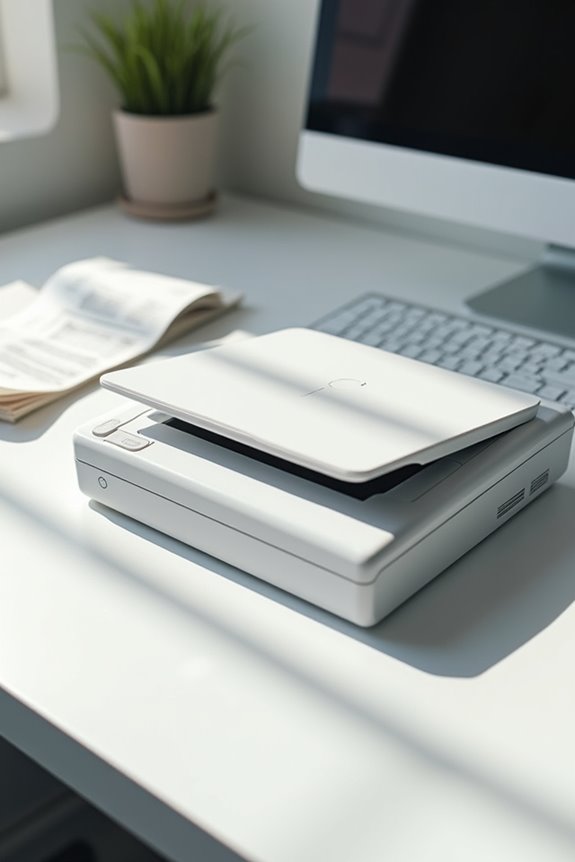
To effectively use a scanner for receipt scanning in accounting, we should start by selecting the right type of scanner, such as a sheet-fed for speed or portable for convenience. Setting up the scanner involves installing software and cleaning the scanning surface. Utilizing Optical Character Recognition (OCR) technology helps us extract data accurately. Integrating scanned receipts with accounting software automates expense tracking and keeps records compliant. This process streamlines our workflows and enhances financial clarity, and there’s more to explore!
Key Takeaways
- Choose the right scanner type (flatbed, sheet-fed, or portable) based on your scanning frequency and volume of receipts.
- Install the scanner with the latest drivers, set it up near your computer, and clean the glass for optimal image quality.
- Configure scanner settings like DPI and file formats to ensure seamless integration with your accounting software.
- Utilize OCR technology to accurately extract data from receipts, minimizing manual entry and enhancing efficiency.
- Ensure data security with encryption, compliant storage solutions, and regular backups to safeguard sensitive financial information.
Choosing the Right Scanner for Receipts
You may be interested

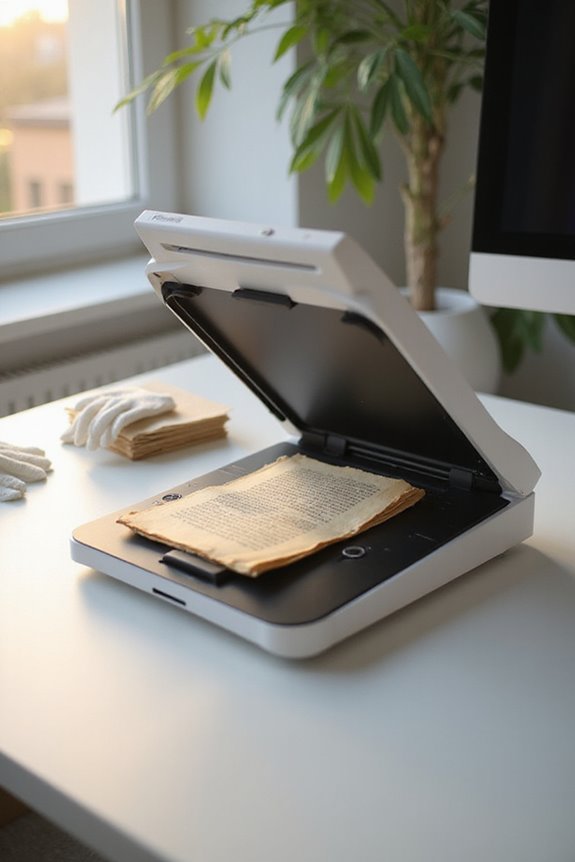
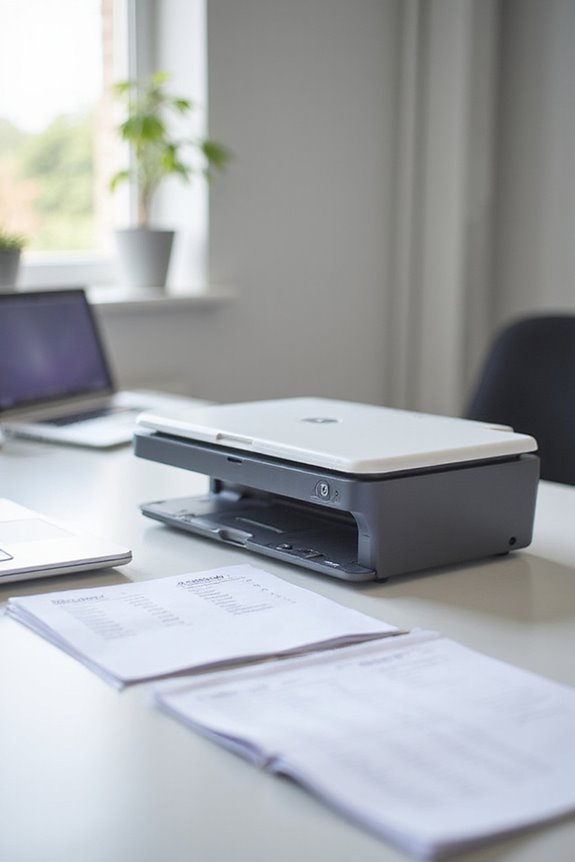
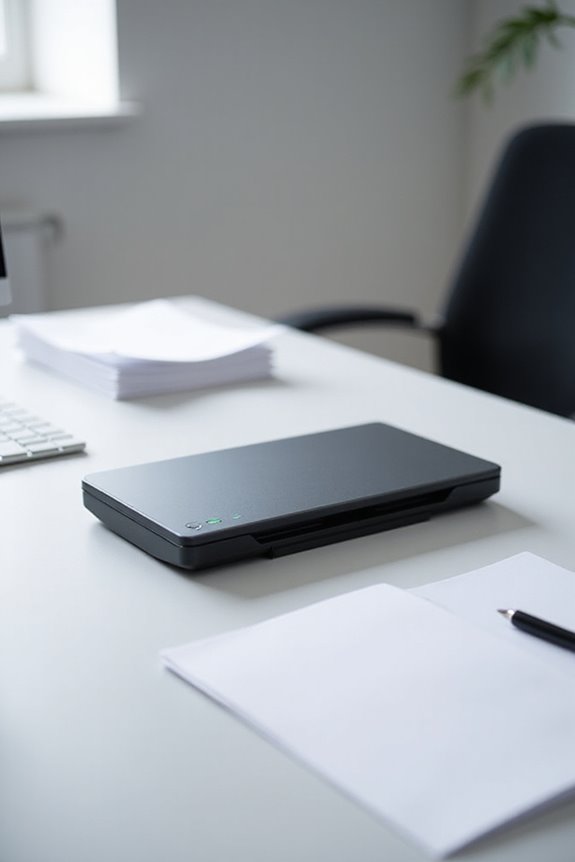
When we’re choosing the right scanner for receipts, it’s vital to take into account our specific needs and how often we’ll be scanning. There are various scanner types available, including flatbed, sheet-fed, and portable options. Flatbed scanners offer high-quality scans but are slower, while sheet-fed scanners efficiently handle multiple receipts at once. For those of us on the go, a portable scanner is lightweight and convenient. No matter which type we choose, incorporating Optical Character Recognition (OCR) is essential for extracting data accurately. The scanning benefits, like auto-cropping and batch processing, can save us time while improving readability. Additionally, scanning speed is an important factor to consider, as faster models can significantly enhance productivity. Understanding these factors can help us select a scanner that meets our workflow needs effectively.
Setting Up Your Scanner
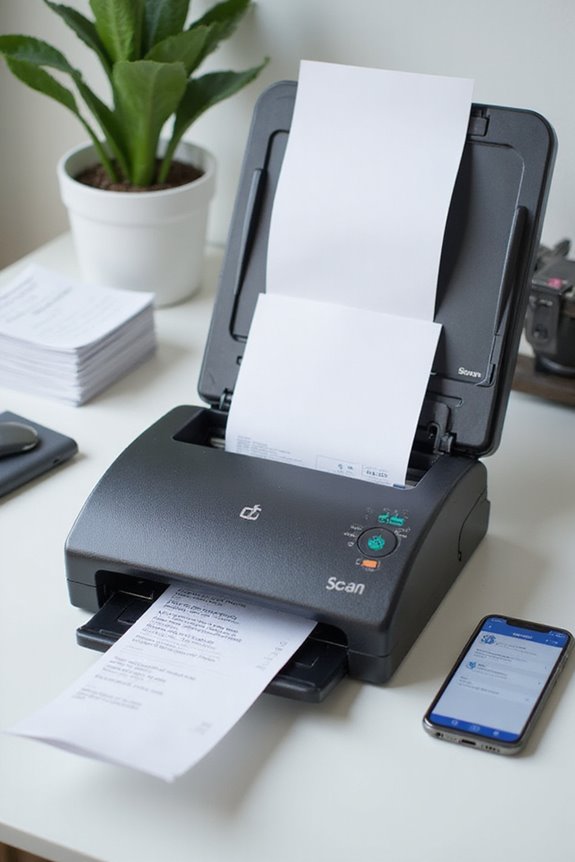
Now that we’ve chosen the right scanner to fit our receipt scanning needs, setting it up correctly is the next significant step. First, we’ll guarantee proper scanner installation by downloading the latest drivers and manufacturer software. This optimization is essential for accessing all features, including scanning modes that enhance clarity. Next, we’ll place the scanner on a stable surface, making sure it’s close to our computer for efficient connectivity. It’ll be vital to clean the scanner glass for high-quality image results. For effective scanner maintenance, we should flatten receipts, remove any attachments, and sort them by size. Finally, we’ll configure settings like DPI and file formats, making sure everything is tailored for seamless use in our accounting software. Additionally, ensuring software compatibility with QuickBooks will streamline the data transfer process.
Utilizing OCR Technology for Accurate Data Extraction
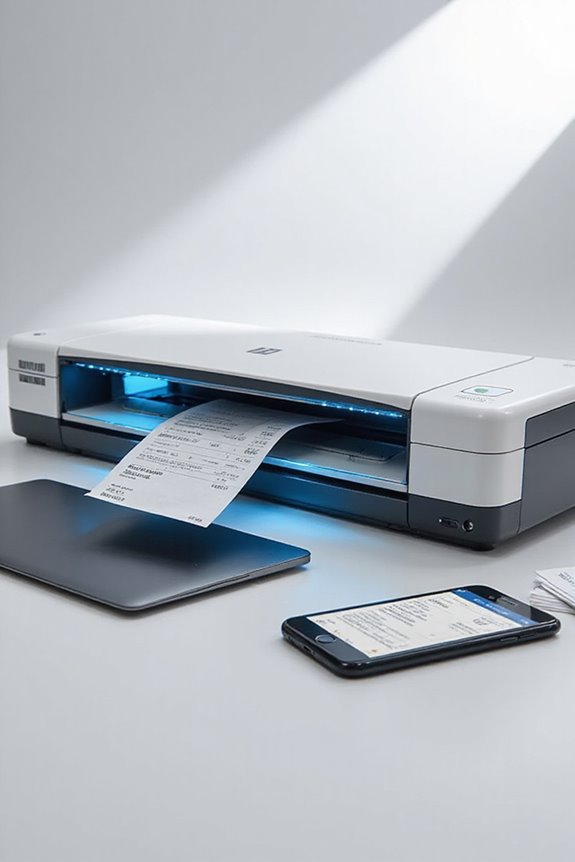
By leveraging OCR technology, we can transform the way we handle receipt data extraction, greatly minimizing manual effort and errors. OCR accuracy plays an essential role in extracting information from receipts, typically achieving about 97% precision. To maximize this accuracy, we should implement effective preprocessing techniques. These techniques include enhancing image quality by correcting alignment, removing noise, and ensuring good lighting during scanning. For example, cropping to isolate relevant data yields clearer results. High-quality input images allow OCR engines to focus on distinct elements, boosting data extraction success. Post-processing further enhances results by detecting anomalies. Consequently, utilizing OCR not only streamlines workflow but also provides reliable accuracy in our accounting processes, making our operations faster and more efficient. Additionally, incorporating high optical resolutions can significantly improve the accuracy of text recognition.
Integrating Scanned Receipts With Accounting Software
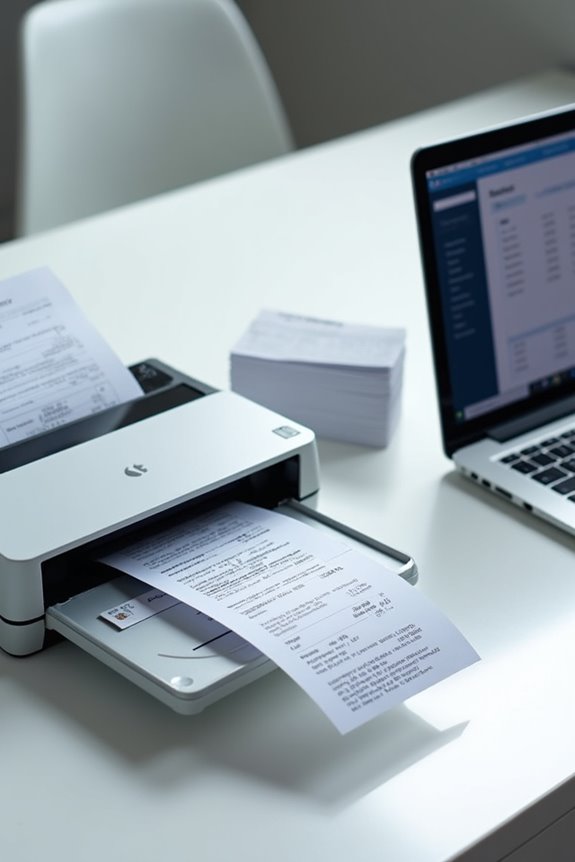
Integrating scanned receipts with accounting software can greatly enhance our financial management processes. With features like data synchronization, popular apps seamlessly connect to platforms like QuickBooks and Xero. This direct transfer of expense data eliminates manual entry, increasing accuracy and saving valuable time. When we upload scanned receipts, expense categorization occurs automatically, simplifying our bookkeeping. Real-time syncing keeps our records current, providing us with instant financial insights. Additionally, it enhances transparency and audit readiness, as all documents are stored within one system. As we adopt these integrated solutions, we guarantee compliance with tax regulations while streamlining expense report processes. By choosing the right tools, we can considerably improve our financial tracking and organization. Furthermore, many of these apps utilize automatic data extraction capabilities, ensuring that the information captured from receipts is both accurate and organized.
Organizing and Managing Scanned Receipts
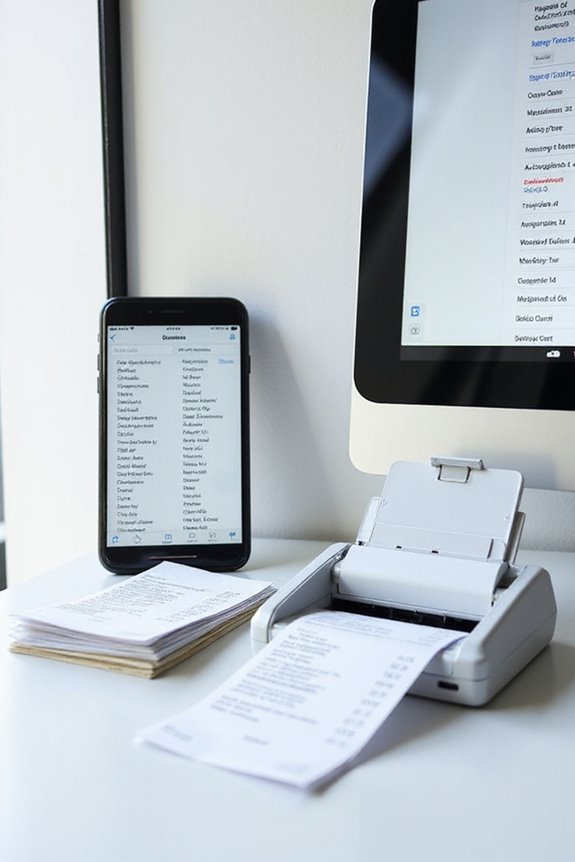
Organizing and managing scanned receipts is essential for effective financial tracking and compliance. We can implement receipt categorization using OCR technology to automatically extract important details like date, vendor, and total amount. By establishing custom categories tailored to our needs, such as meals or office supplies, we enhance sorting efficiency. Storage strategies are just as critical; utilizing secure cloud options like Google Drive guarantees accessibility and redundancy. We should follow consistent naming conventions for folders to maintain order. Batch organizing features allow us to assign categories right after scanning, making retrieval seamless. By grouping receipts based on tax relevance, we streamline our compliance efforts while keeping everything organized for audits. Additionally, choosing a scanner with high optical resolution ensures clarity in scanned PDFs, which is vital for accurate record-keeping. Let’s work smart to manage our finances effectively!
Ensuring Security and Compliance
When we prioritize security and compliance in receipt scanning, it not only protects our sensitive data but also assures we meet necessary regulations. Utilizing AES 256-bit data encryption for transmission and storage guarantees that unauthorized access is prevented. We must choose scanners that include secure user authentication features like strong passwords and multi-factor authentication to bolster access control. Storing receipt data on compliant cloud services provides us with regular security audits, while adhering to SOC 2 compliance confirms rigorous controls over our information. Additionally, securing automatic backups minimizes the risk of data loss. By implementing these measures, we can confidently maintain the integrity of our financial records, assuring readiness for audits while complying with IRS documentation requirements. Furthermore, selecting scanners with strong security features ensures that our financial data remains protected against potential breaches.
Enhancing Efficiency in Receipt Processing
As we seek to enhance efficiency in receipt processing, leveraging advanced technologies becomes essential. Utilizing Optical Character Recognition (OCR) reduces manual entry errors, ensuring accuracy in expense reports. By implementing receipt categorization strategies, we can automate the extraction of key details like vendor name, date, and amount, streamlining record-keeping. This approach not only boosts data reliability but also aids in expense tracking techniques that allow us to analyze spending patterns. Cloud-based scanning facilitates real-time submission and accelerates workflows, freeing up employees for higher-value tasks. The integration of these technologies results in faster reconciliation, improved financial insights, and ultimately, more robust expense management. Embracing automation transforms our processes into efficient, audit-ready systems that save both time and money.
Recommended Products

PORTABLE SCANNER FOR USE ON-THE-GO — The fastest and lightest mobile single-sheet-fed compact document scanner in its class¹

FAST SPEEDS - Scans color and black and white documents a blazing speed up to 16ppm (1). Color scanning won’t slow you down as the color scan speed is the same as the black and white scan speed.
Frequently Asked Questions
Can I Use My Smartphone for Receipt Scanning Instead of a Scanner?
Yes, we can definitely use our smartphones for receipt scanning. With various smartphone apps available, we’ll improve scanning accuracy, making it a convenient and efficient option for capturing receipts on-the-go without needing a dedicated scanner.
How Do I Handle Receipts in Different Languages?
Handling receipts in different languages should feel like magic! With multilingual OCR and efficient receipt translation, we can effortlessly manage expenses, ensuring accuracy and making bookkeeping as seamless as a breeze for our diverse transactions.
What Types of Receipts Work Best for Scanning?
When we think about what types of receipts work best for scanning, we’re drawn to digital receipt formats. Clear print and batch scanning tips can really enhance our scanning efficiency and accuracy!
How Can I Retrieve Lost Scanned Receipts?
When we face lost receipt recovery, we can rely on digital backup solutions. Regularly backing up receipts in the cloud and storing copies in multiple locations can greatly enhance our chances of successful recovery.
Are There Limitations on the Number of Receipts I Can Scan?
When it comes to limits on scanning, we should carefully review receipt management systems. Some apps impose restrictions, especially on free plans. We must choose wisely to avoid unexpected disruptions in our scanning process.